USB Bridge CAN Firmware Flashing
SSH into the Host
- Before compiling the firmware, you need to
connect to the host via WiFi SSH.
- First, please: Connect to the host via WiFi SSH
- USB Bridge CAN Firmware Flashing
- Manually Compile USB Bridge CAN Firmware
USB Bridge CAN Firmware Flashing
- The FLYOS-FAST system has a pre-compiled USB Bridge CAN firmware. There's no need to manually compile the firmware; you can flash it by executing the command below.
- Alternatively, you can choose
Manually Compile USB Bridge CAN Firmwareto compile the firmware yourself.
-
The FAST system defaults to a 1M rate. If you need 500K, you need to modify the
canbus_bitraterate in the system configuration. -
This command flashes the
1MUSB Bridge CAN Firmware.
fly-flash -d auto -h -f /usr/lib/firmware/klipper/stm32h723-128k-usbcan-1m.bin
- This command flashes the
500kUSB Bridge CAN Firmware.
fly-flash -d auto -h -f /usr/lib/firmware/klipper/stm32h723-128k-usbcan-500k.bin
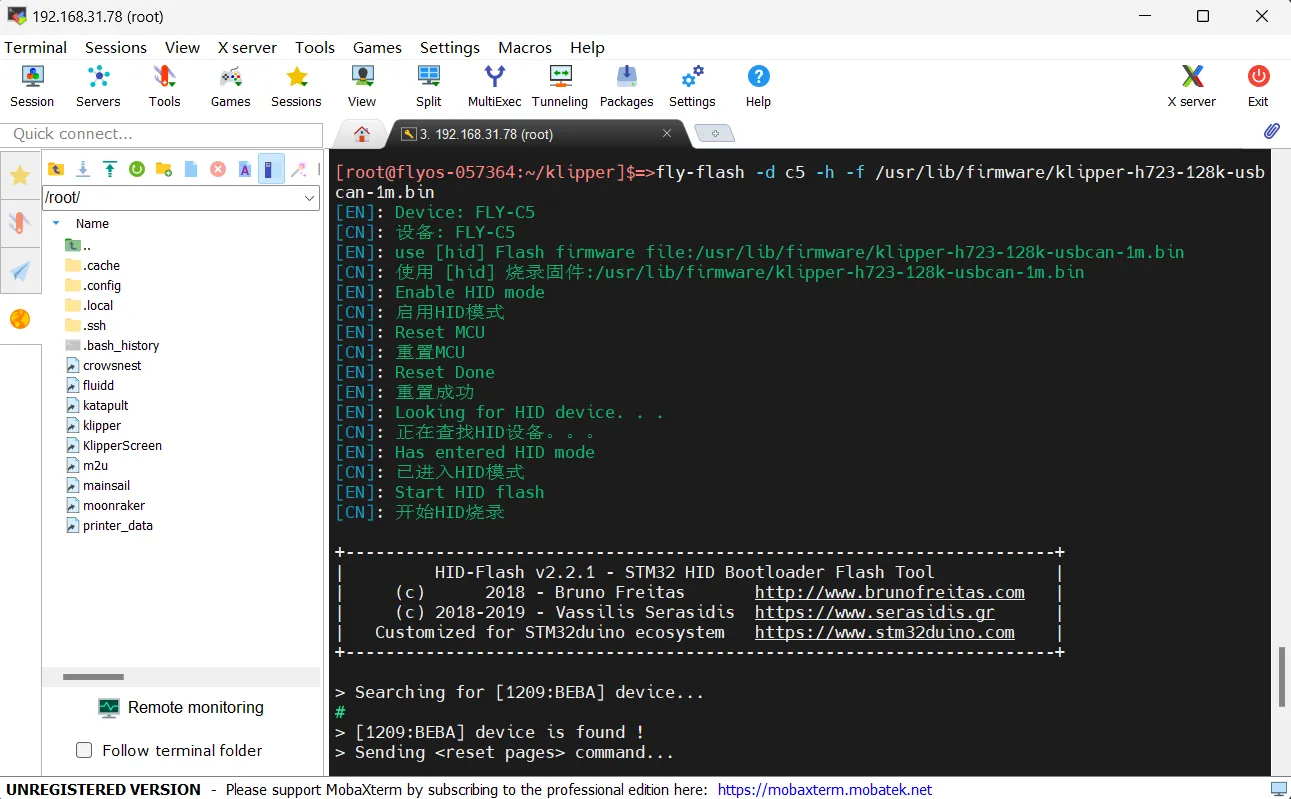
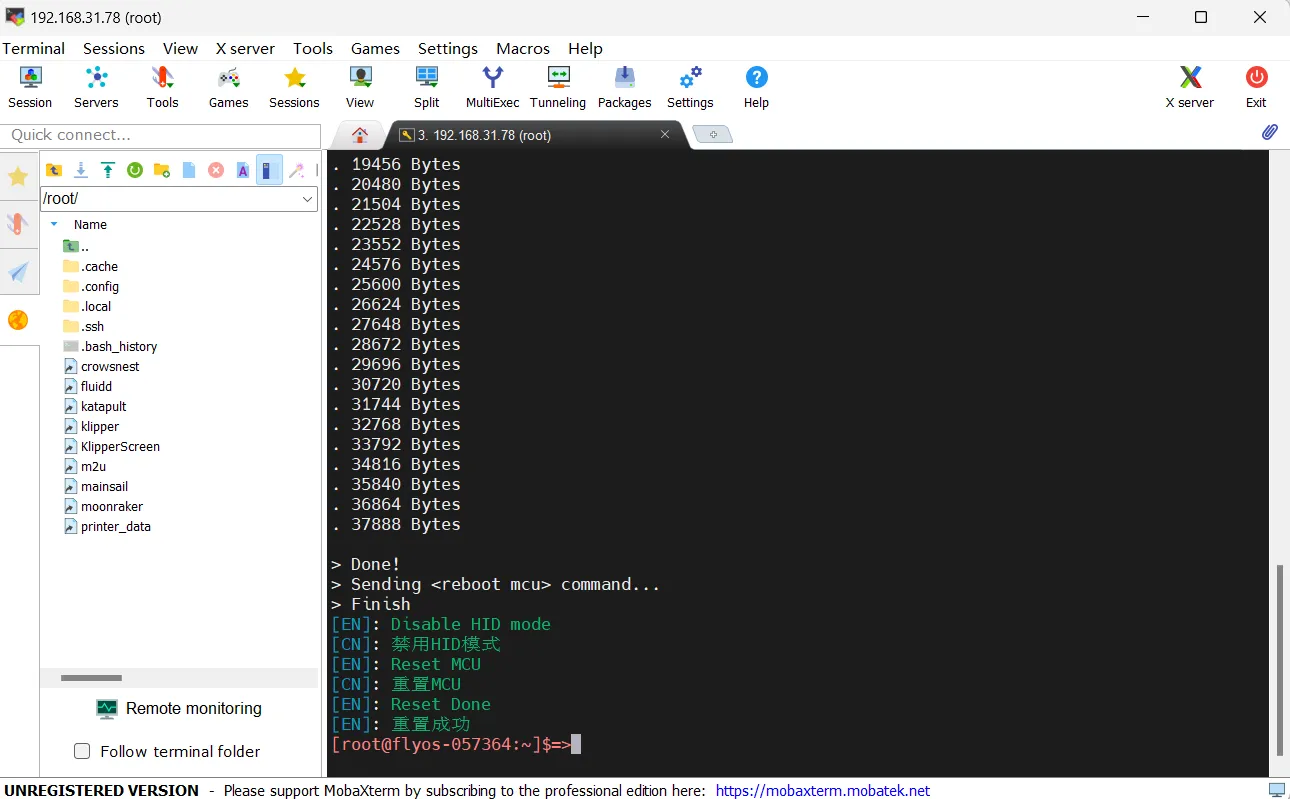
Manually Compile USB Bridge CAN Firmware
Klipper Firmware Compilation and Configuration Page Operation Instructions
Please ensure that the keyboard input method is in half-width mode, i.e., English mode.
- The up arrow key
↑, down arrow key↓are used to move the cursor up and down to select menu items. - The confirm key
Enteror space keySpaceis used to check the menu or enter a sub-menu. - The exit key
ESCis used to return to the previous menu. - The
Qkey is used to exit the Klipper firmware configuration page. - The
Ykey, when exiting the Klipper firmware configuration page and there is a prompt, click theYkey to save the configuration file.
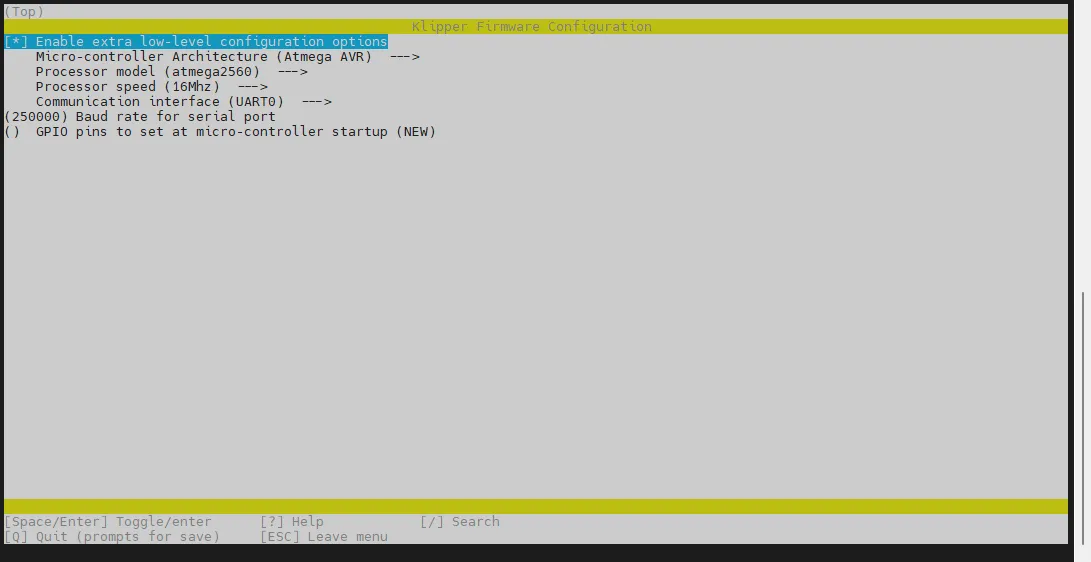
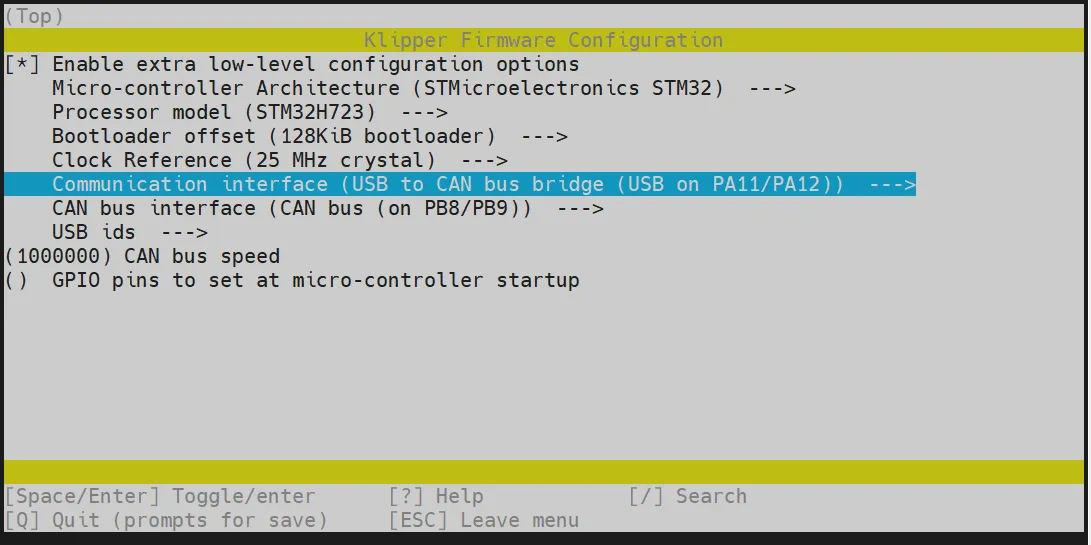
If there are fewer options in the configuration page, please first check [ ] Enable extra low-level configuration options to display some hidden options.
Below is the introduction on how to compile the firmware:
-
After connecting to SSH, enter the following command and press Enter:
cd ~/klipper && rm -rf ~/klipper/.config && rm -rf ~/klipper/out && make menuconfig -
Where
rm -rf ~/klipper/.config && rm -rf ~/klipper/outis to delete previous compilation data and firmware,make menuconfigis to compile the firmware, after execution, the following interface should appear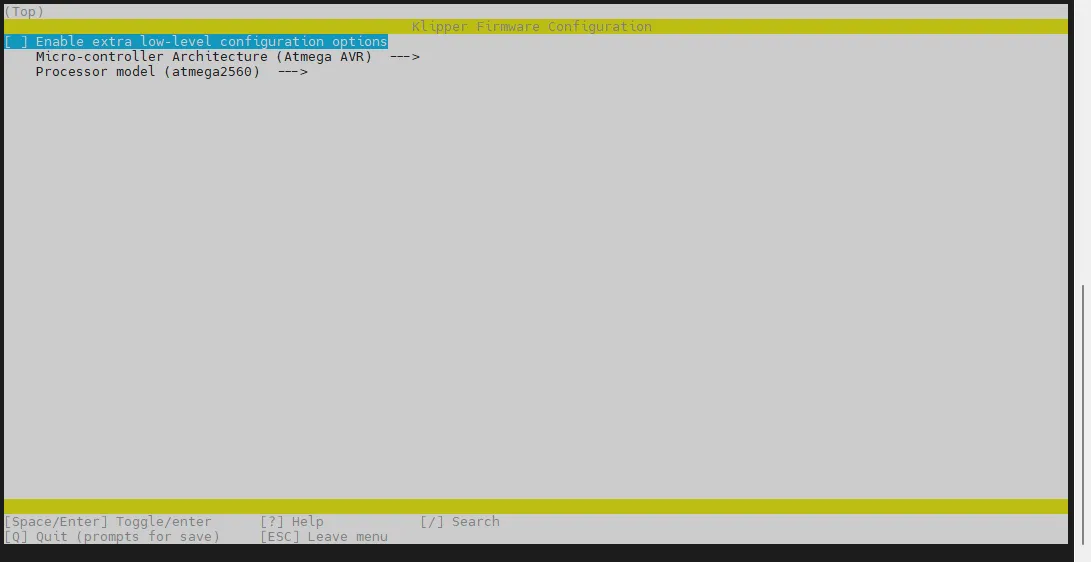
-
Select Enable extra low-level configuration options and press Enter
-
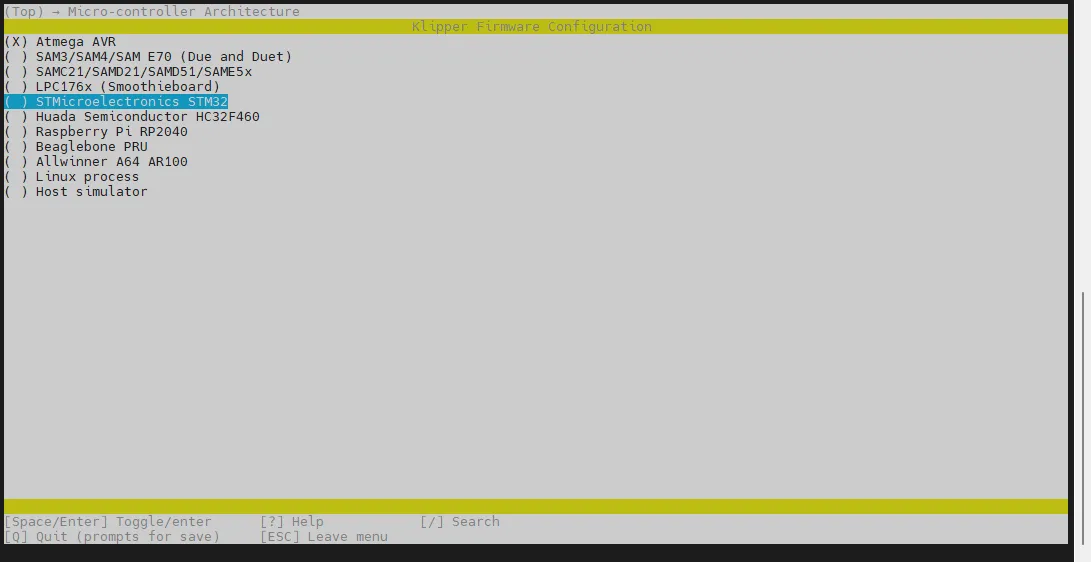
Enter the menu Micro-controller Architecture then select STMicroelectronics STM32 and press Enter
-
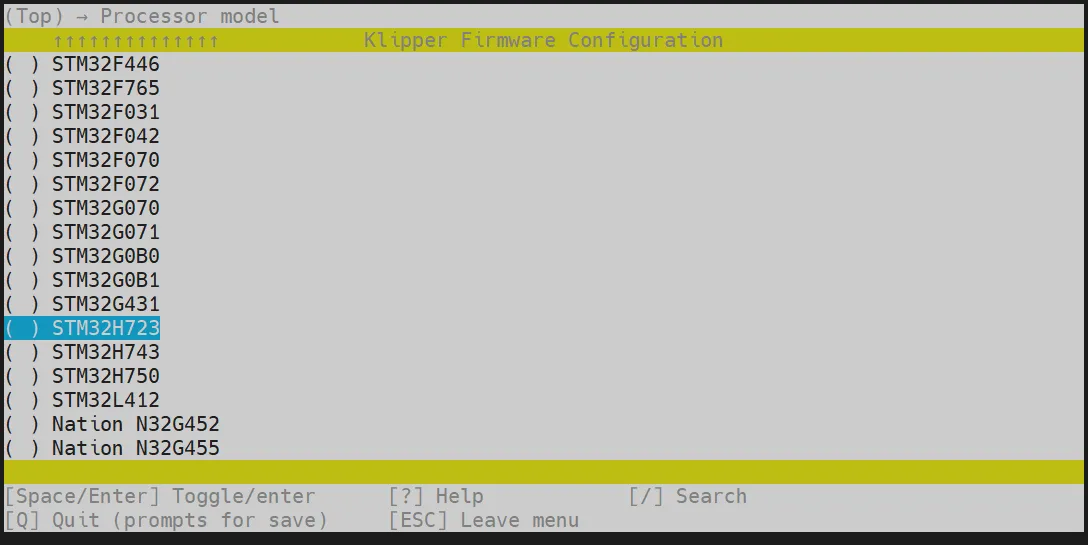
Enter the menu Processor model, select STM32H723 and press Enter
-
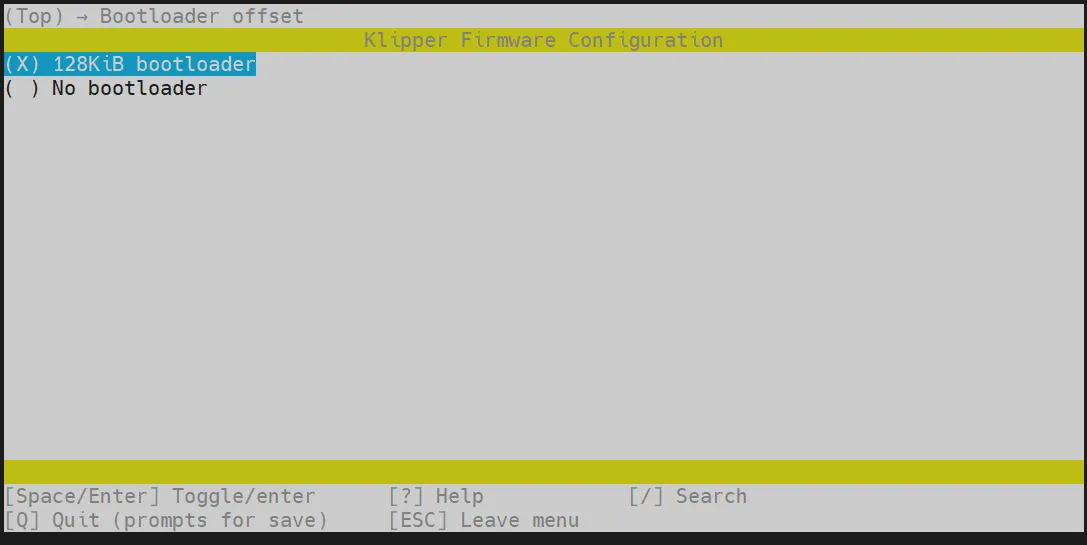
Select Bootloader offset, select: 128KiB bootloader
-
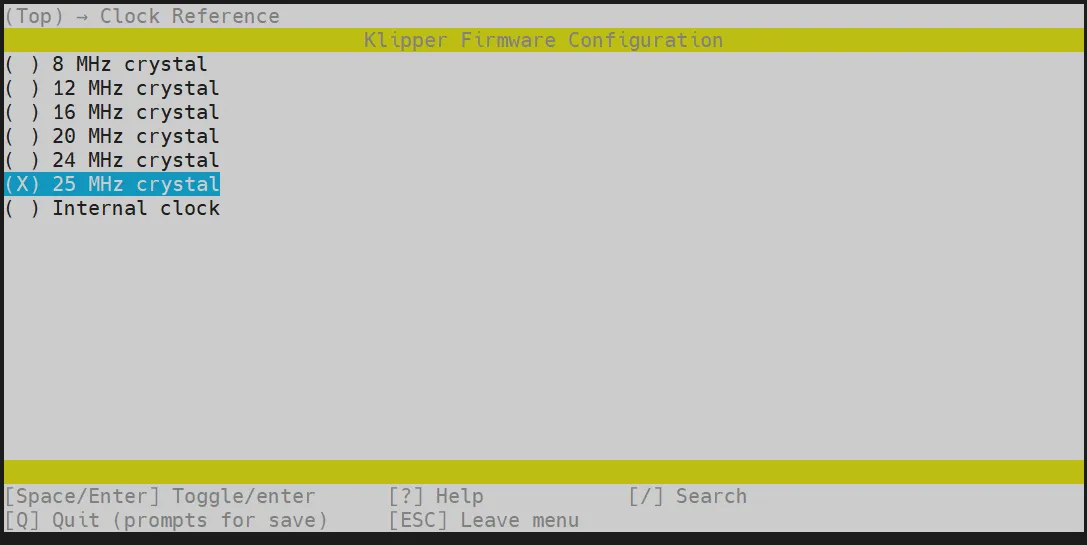
Select Clock Reference (8 MHz crystal), select: 25 MHz crystal
-
Select Communication interface, select: USB to CAN bus bridge (USB on PA11/PA12)
- Press the
Qkey. WhenSave configurationappears, then press theYkey.

-
The configuration should now be saved, and you will have exited to the command line interface.
-
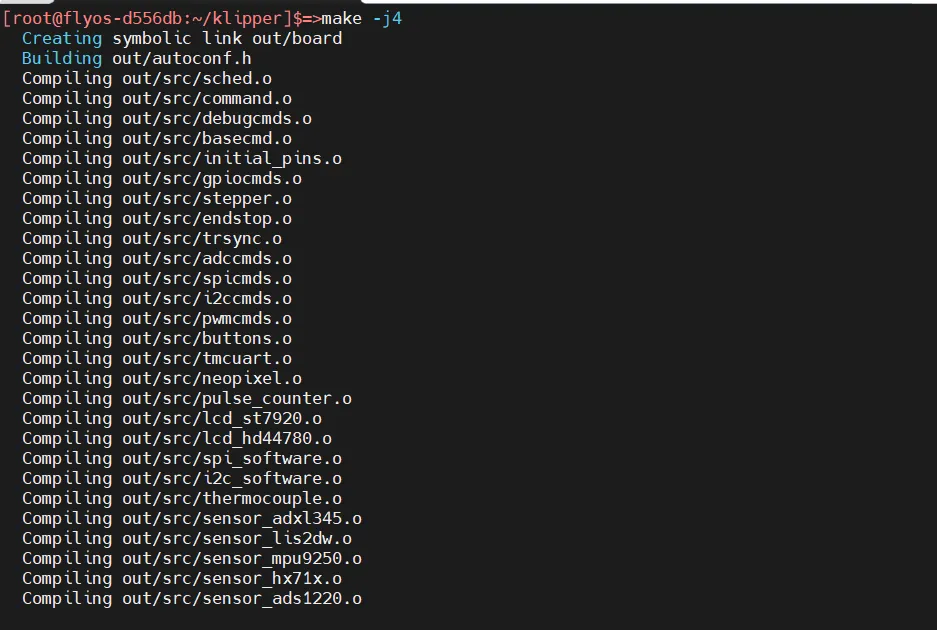
Enter the command below to start compiling. It will take some time.
make -j4
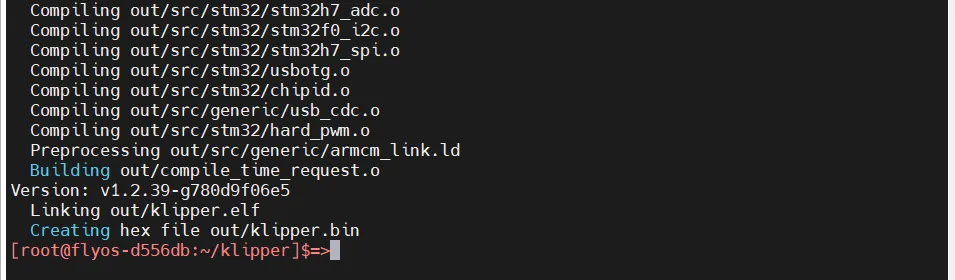
- If the final output shows the content below, the compilation was successful.
Firmware Flashing
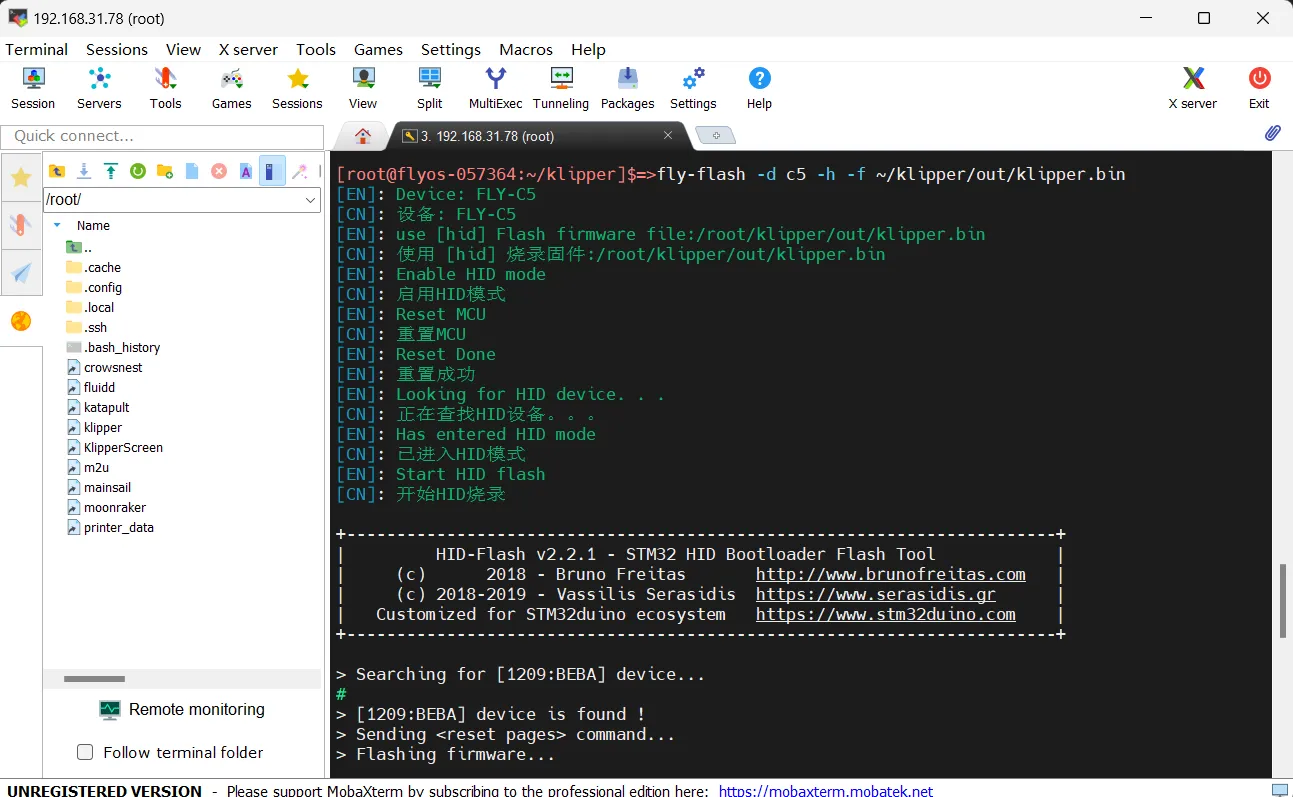
Execute the command below to flash the firmware.
fly-flash -d auto -h -f /data/klipper/out/klipper.bin
Search for CAN ID
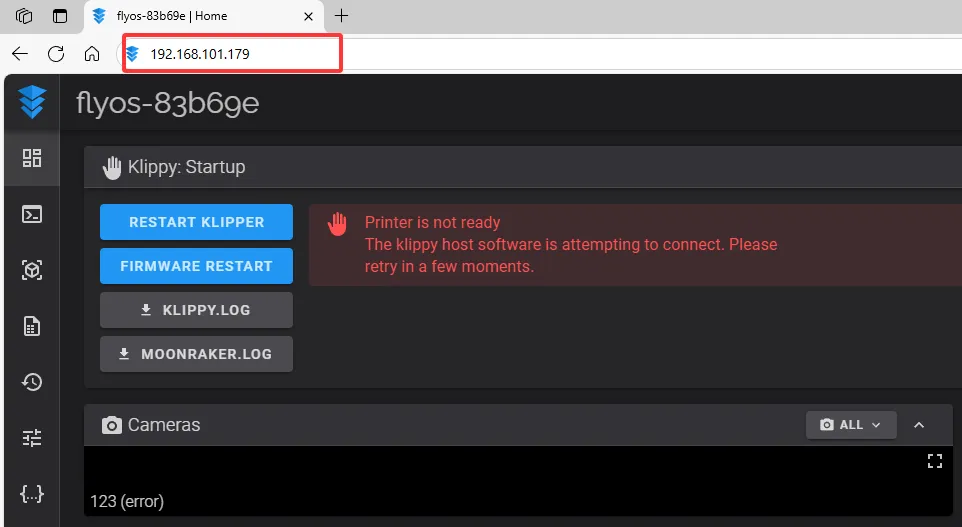
- Open a browser and enter the IP address of the host computer in the address bar. For example, if the IP address of my host computer is
192.168.101.179, simply enter it and press Enter.
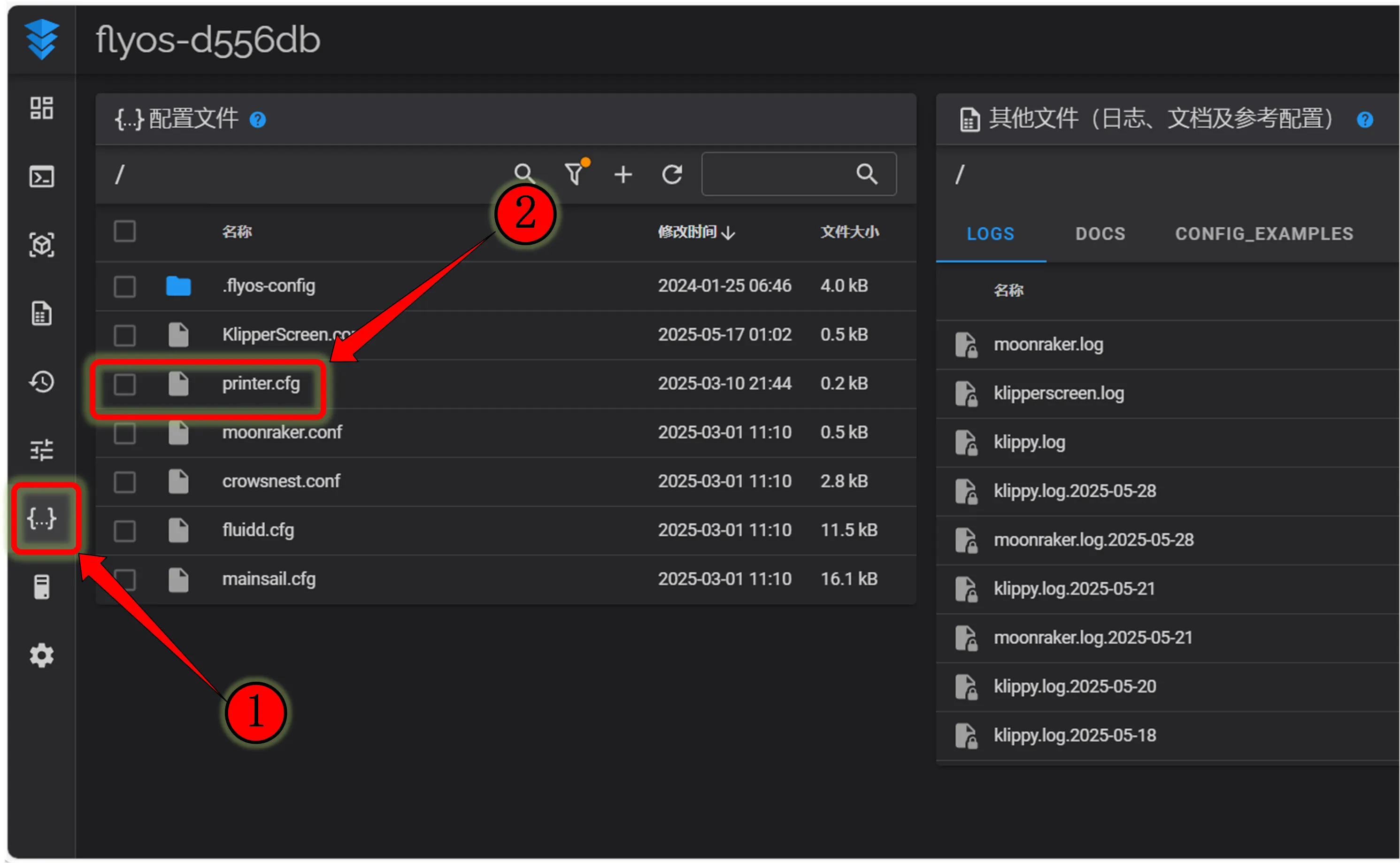
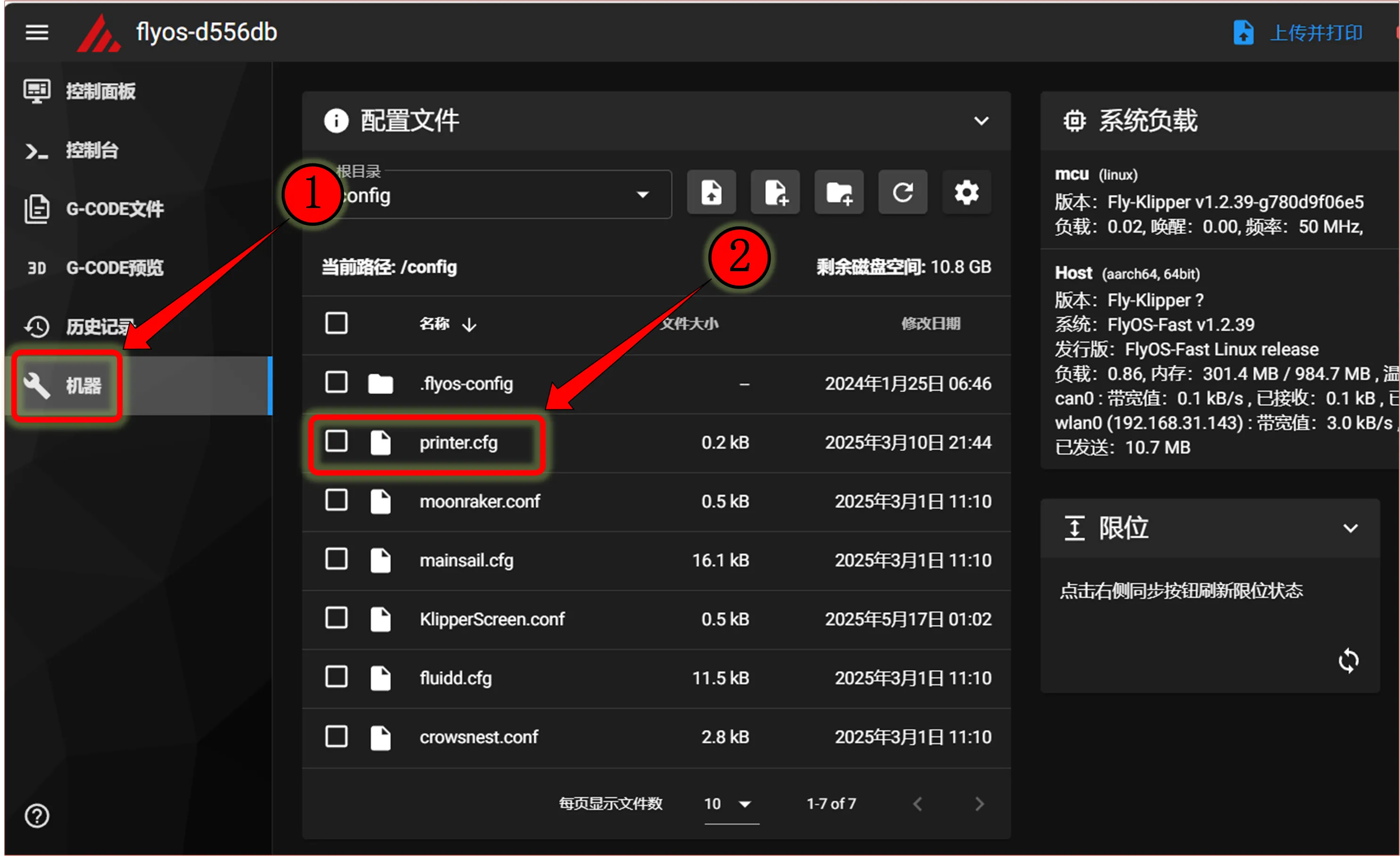
- Open the WEB interface of the host computer, and in the configuration options of the left sidebar, find:
 |
 |
-
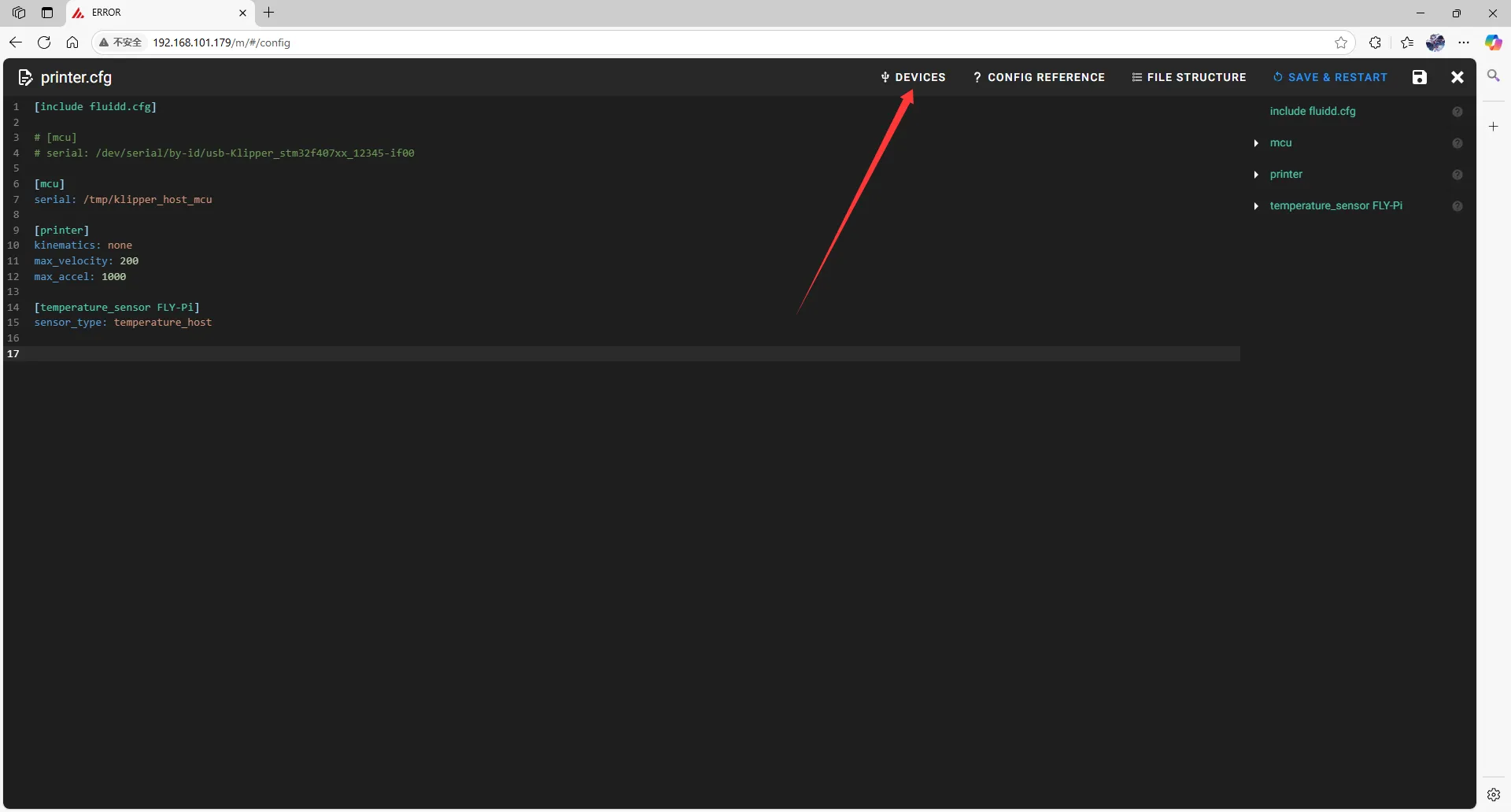
After clicking into
printer.cfg, click onDEVICESin the upper right corner.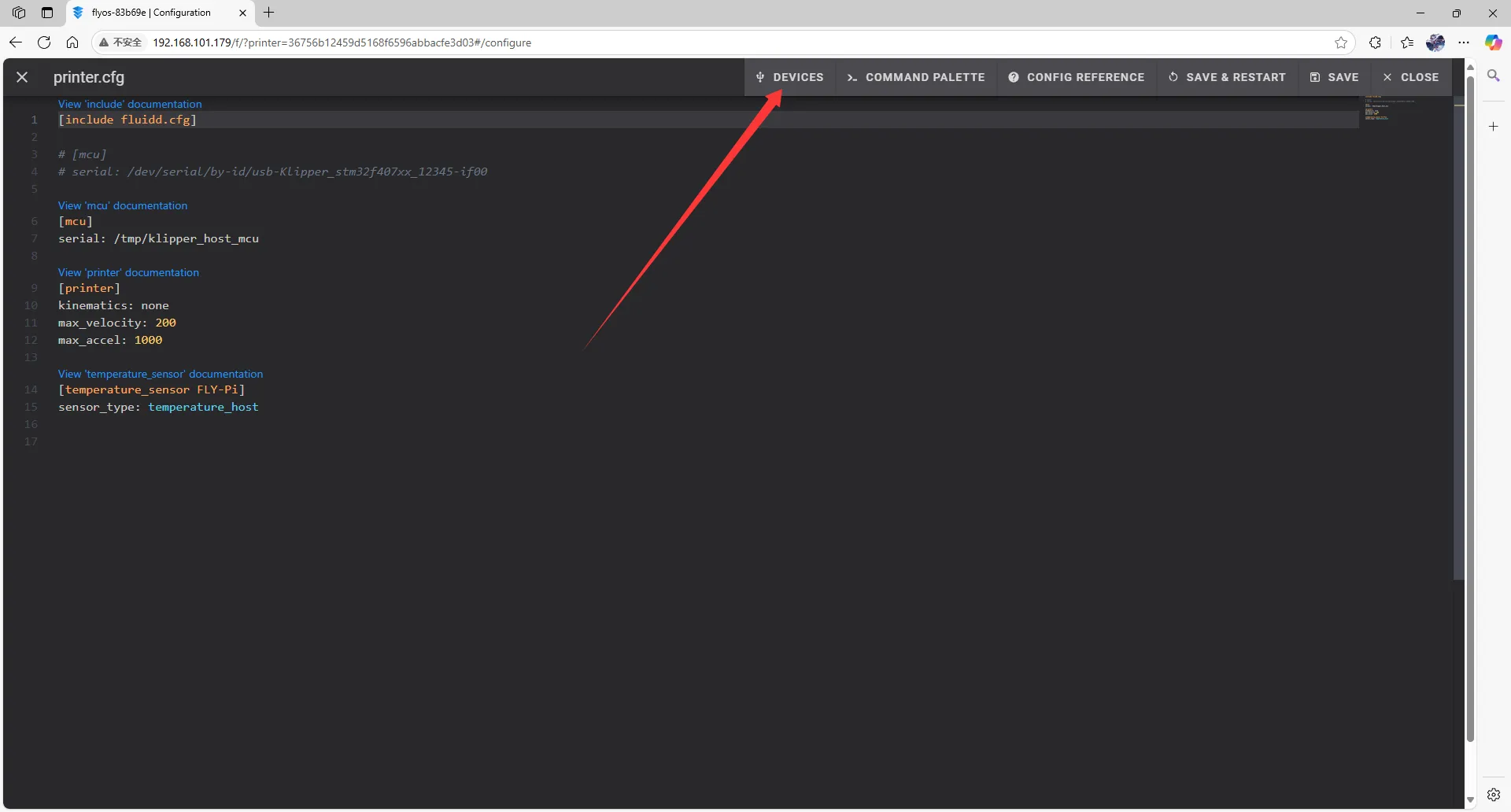
-
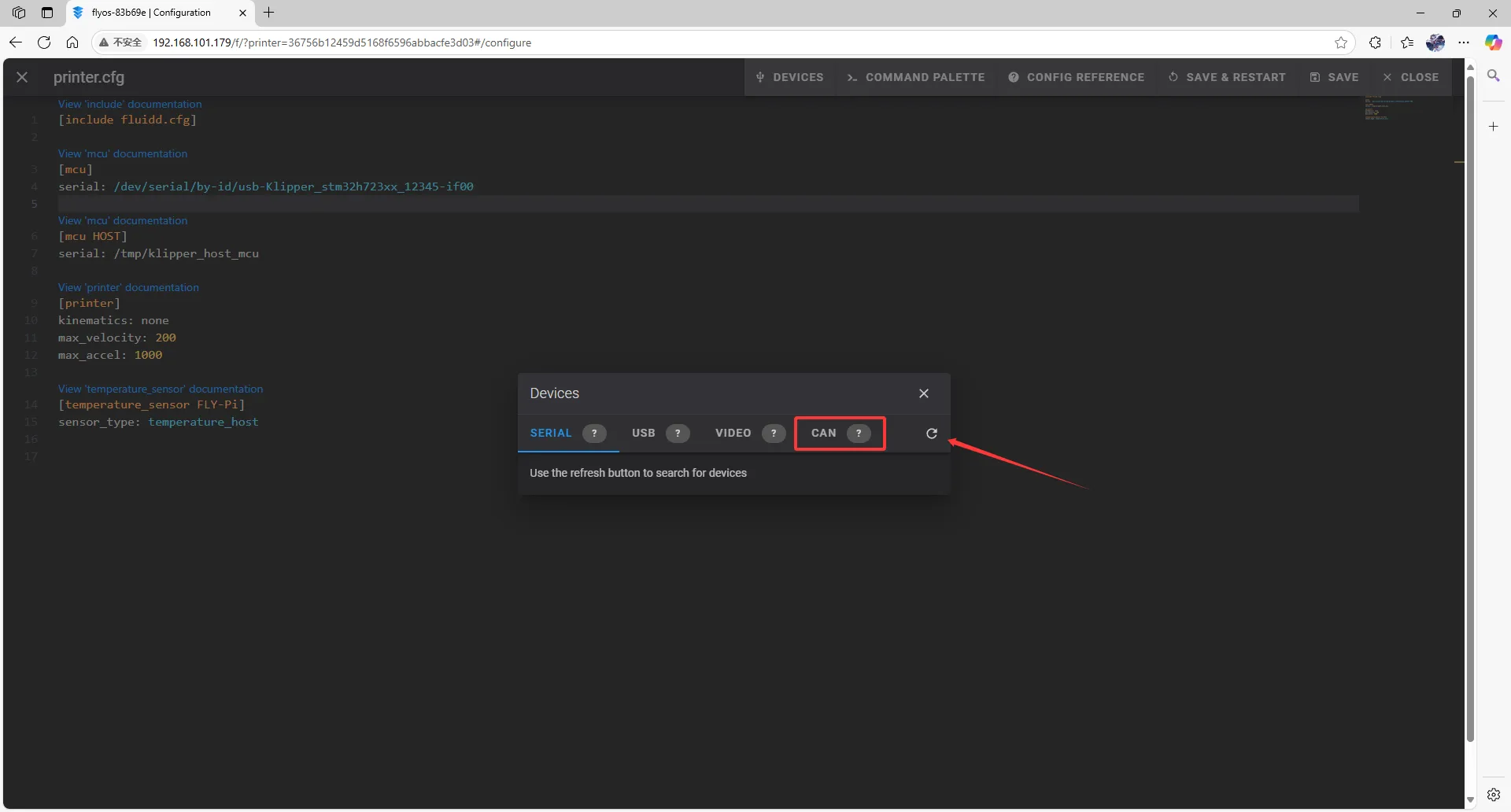
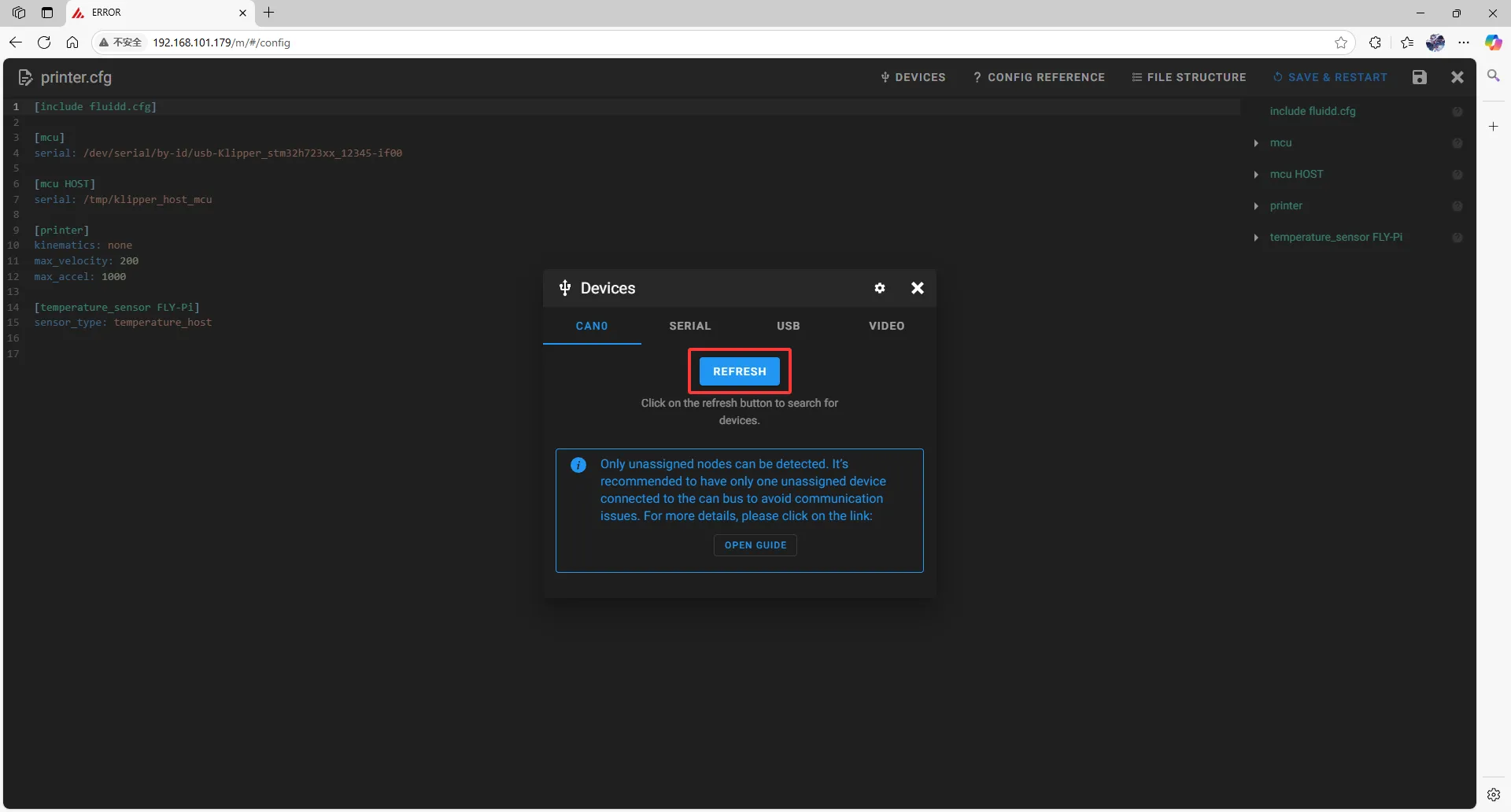
Click
CAN, then refresh.- Refresh in fluidd
- Refresh in mainsail
-
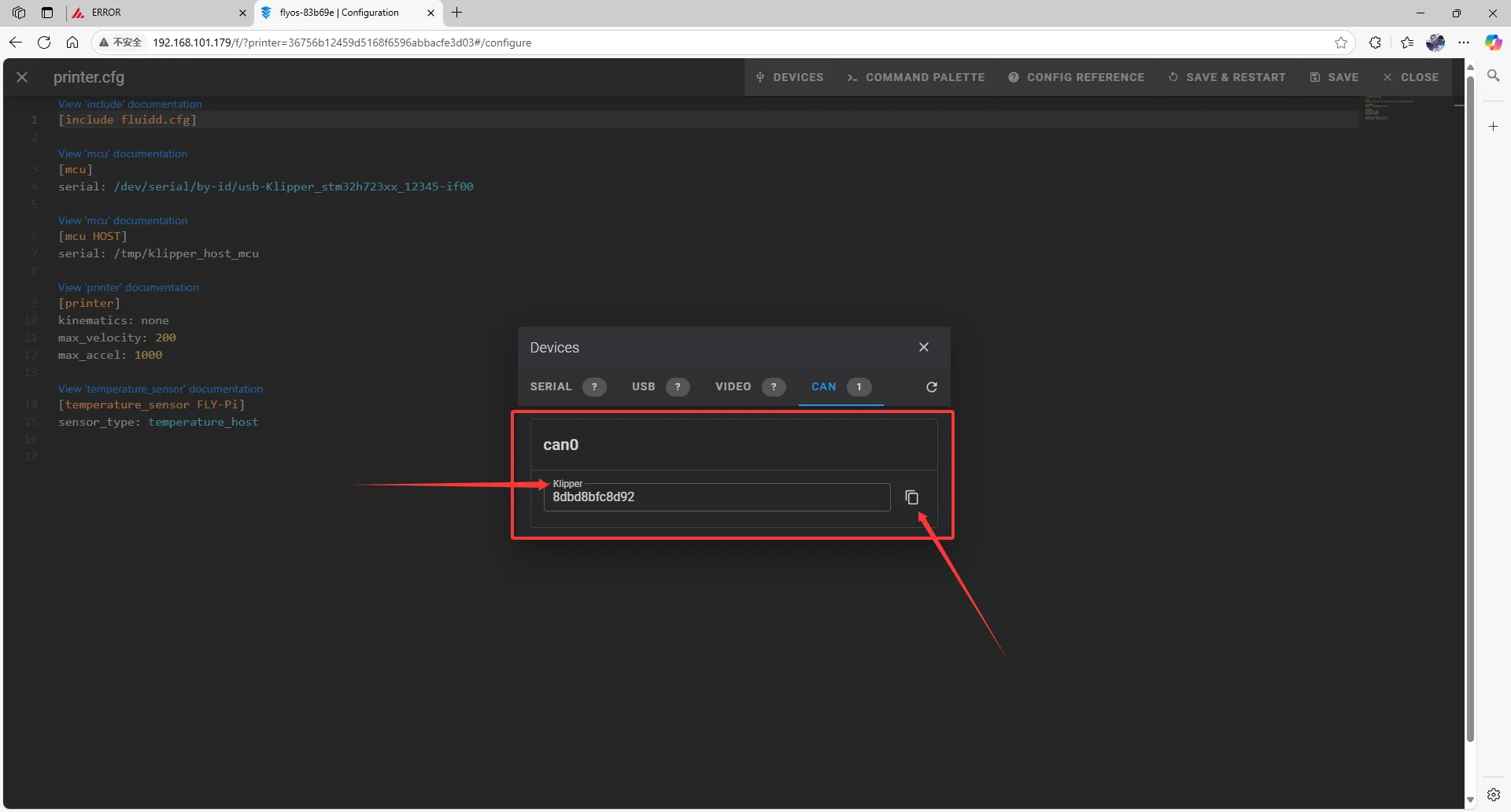
Copy the ID; click the arrow to copy it.
- In fluidd, confirm whether the item pointed to by the first arrow is
Klipper; if so, click the arrow on the right to copy it.
- In mainsail, confirm whether the item pointed to by the first arrow is
Klipper; if so, click the arrow on the right to copy it.
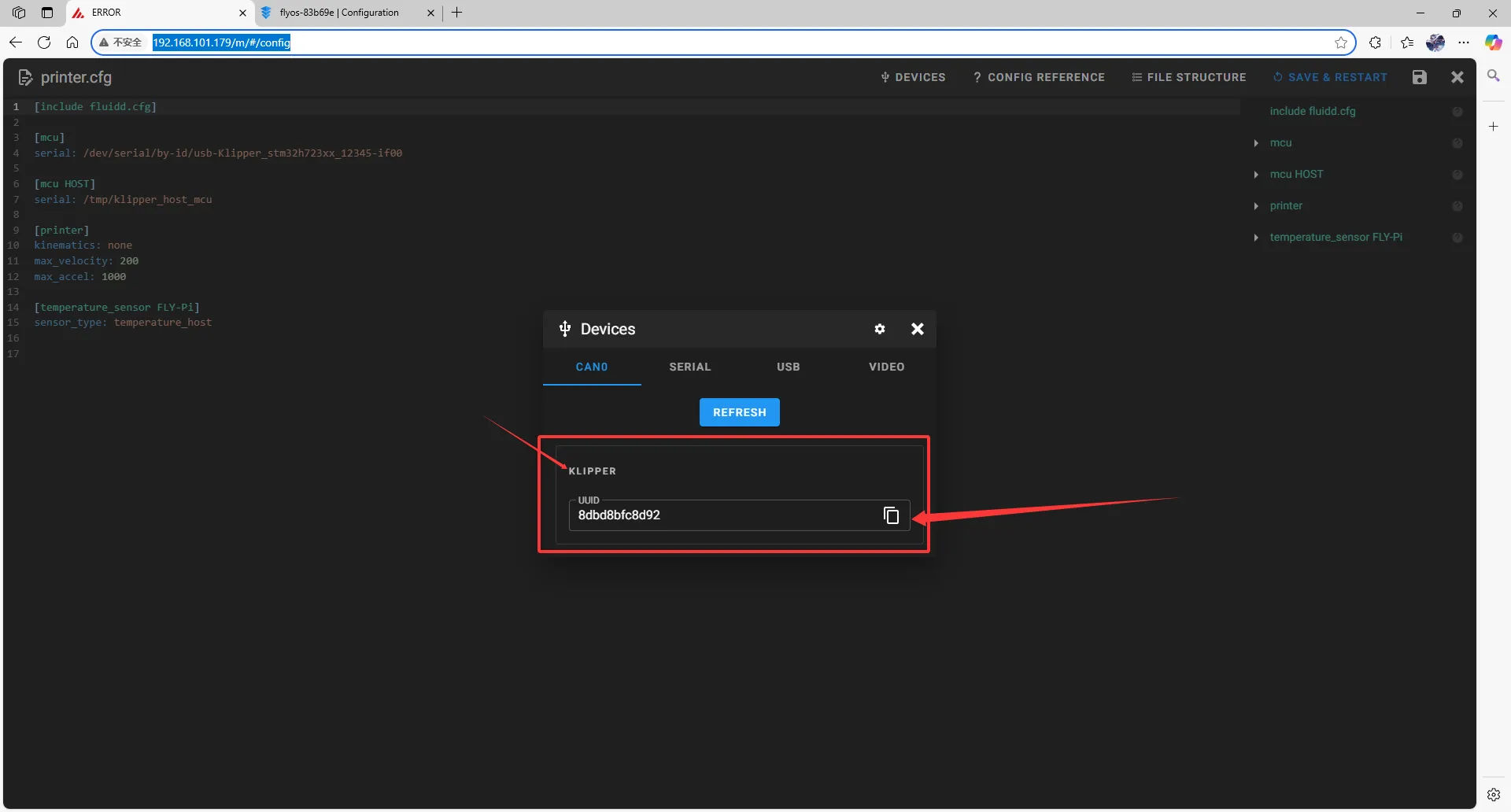
- In fluidd, confirm whether the item pointed to by the first arrow is
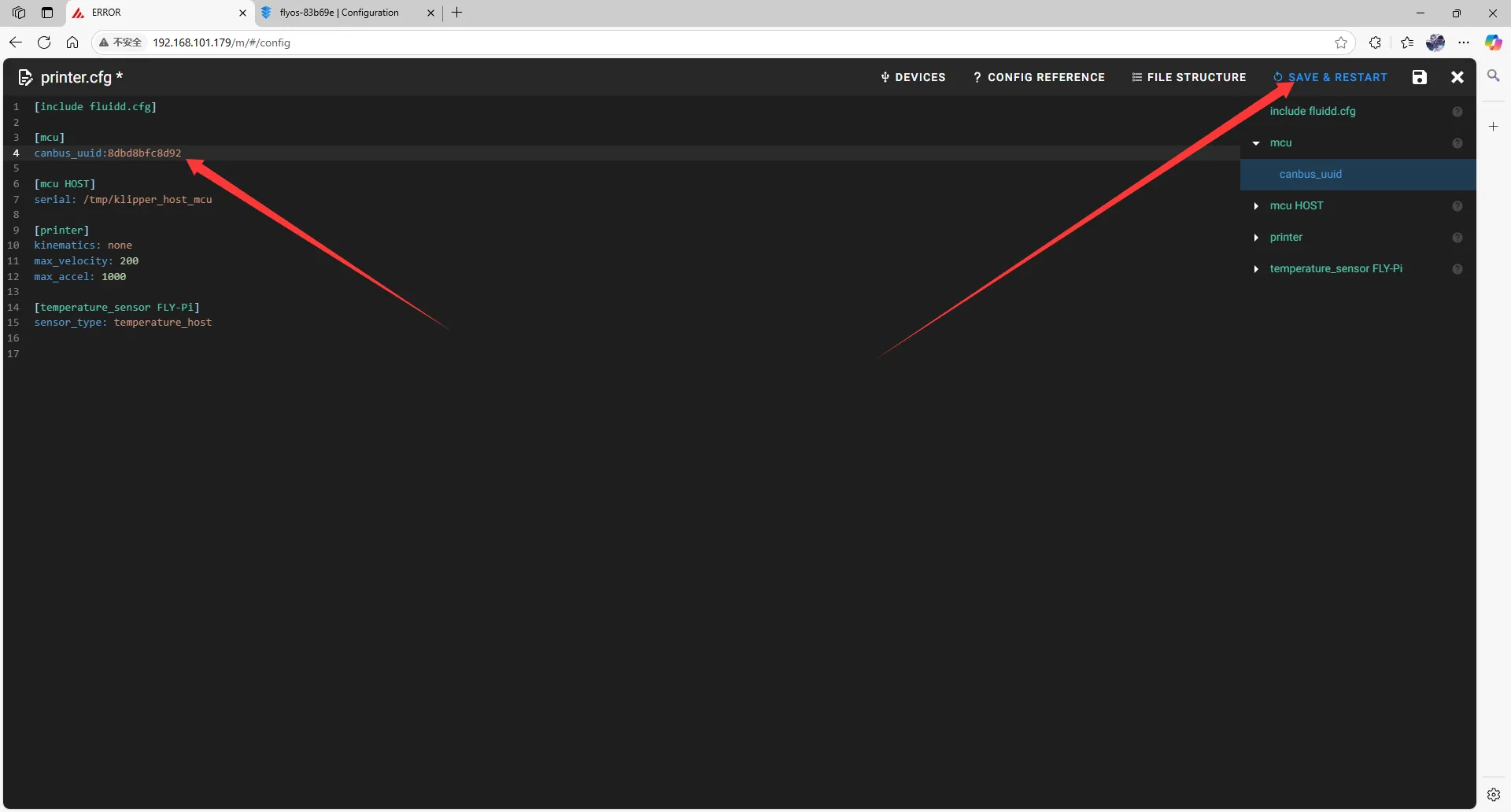
Fill in CAN ID
- Close
DEVICESand fill in the ID
- Please change the following in the configuration file:
[mcu]
serial: /tmp/klipper_host_mcu
to
[mcu host]
serial: /tmp/klipper_host_mcu
- Add:
[mcu]
canbus_uuid: <Replace this with the ID you just looked up>
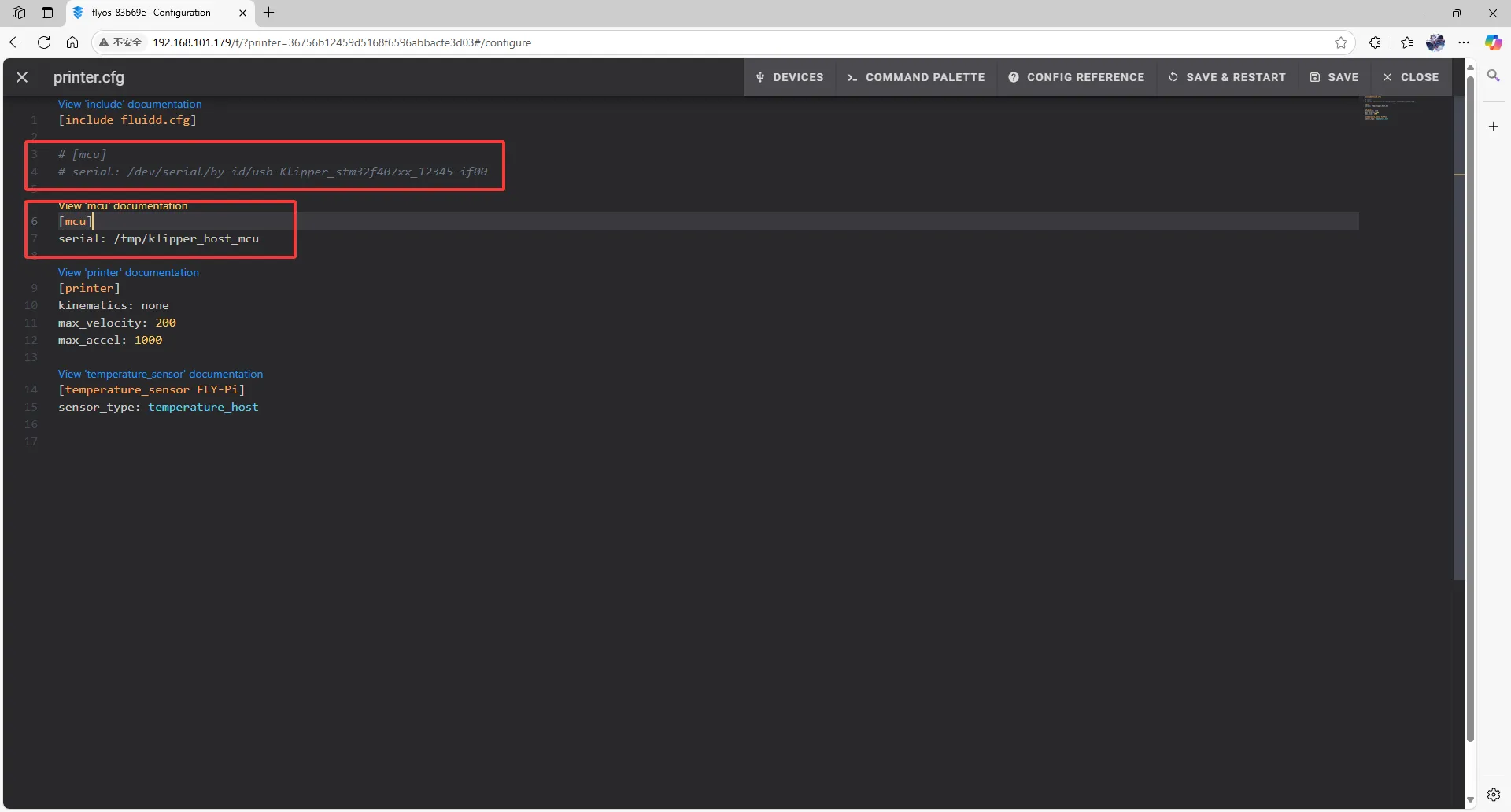 |
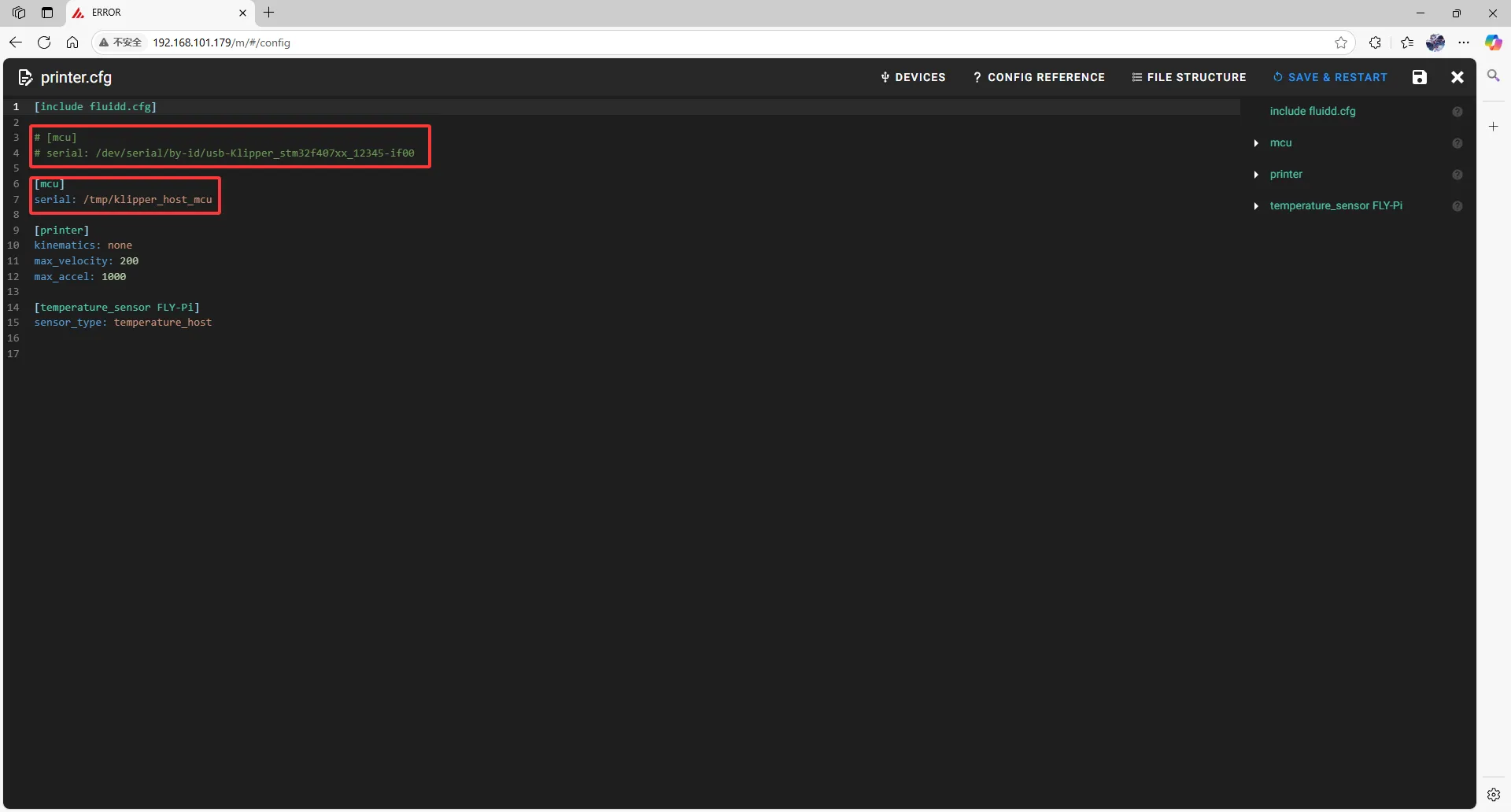 |
- Fill the ID into the configuration
- After filling in the ID, click
SAVE & RESTARTin the upper right corner.
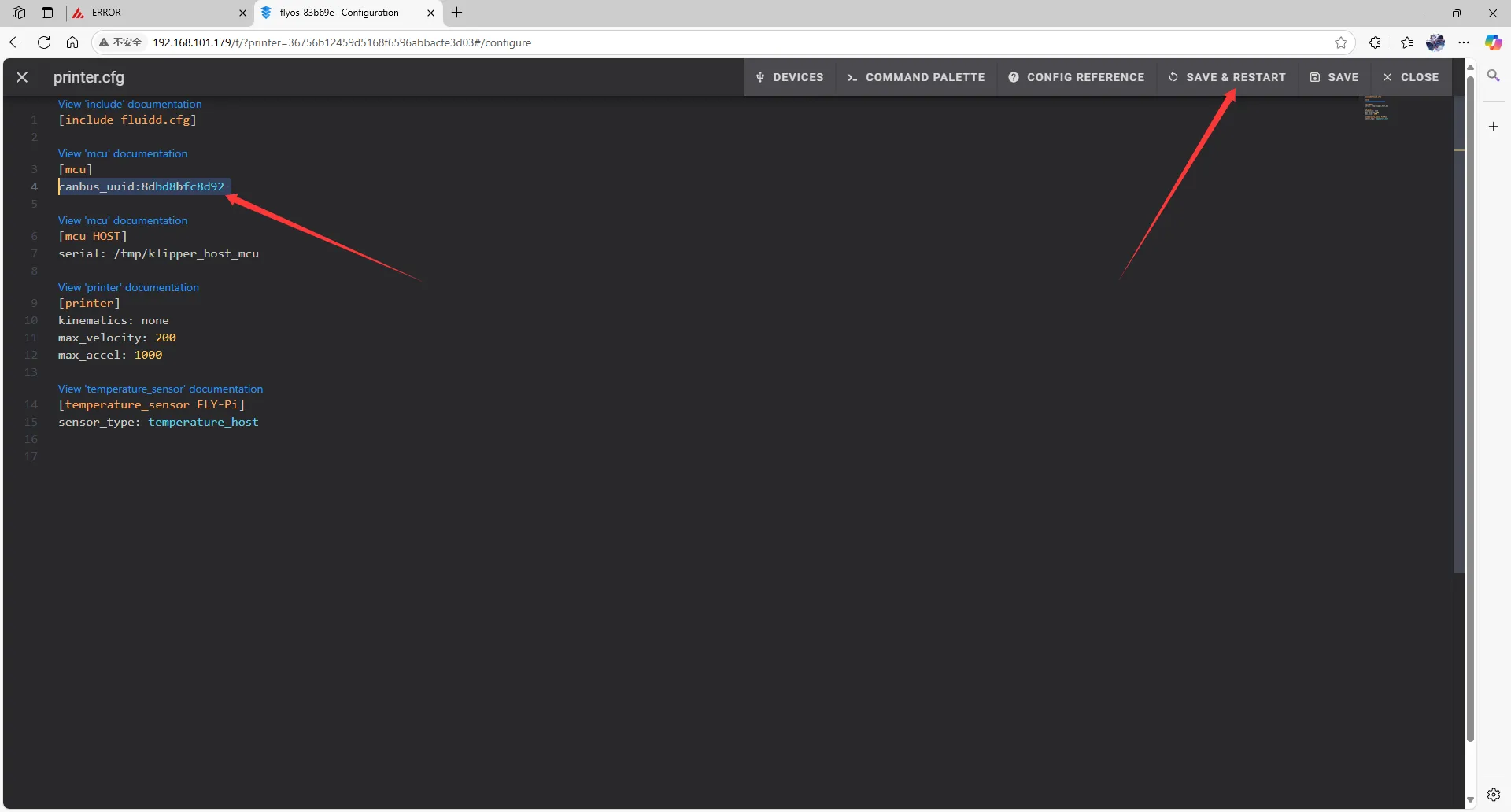 |  |
- If Klipper shows a message
ADC out of range, this is normal. Connect the heated bed and thermistor to the mainboard, and configure the thermistor pins for the extruder and heated bed, then save and restart.
Note: All IDs shown in the documentation are examples. Each mainboard has a different ID, so please fill in the actual ID you obtained.